
How to use Collections Search
The Collections Search database allows you to search The Story's collections. This guide explains how Collections Search works, and tips to get the most out of your search.
How to use Collections Search
The Collections Search database allows you to search The Story's collections. This guide explains how Collections Search works, and tips to get the most out of your search.
Introduction
The Collections Search database allows you to search The Story's collections. This includes archives, DLI objects, local studies, archaeology and civil registration.
Once you have searched for a keyword, Collections Search will show you a list of results. Each of them will describe an item in the collection. Sometimes, there may also be a photo of the item or object, but not in all cases.
If you find an item in the Collections Search you would like to see, please make a note of the item's reference number and make a booking in the Collections Room at The Story. Some archive records are digitised and available to be viewed in the Search and Discover area without an appointment. You can find out more about how to book and access the collections on our Frequently Asked Questions page.
Introduction
The Collections Search database allows you to search The Story's collections. This includes archives, DLI objects, local studies, archaeology and civil registration.
Once you have searched for a keyword, Collections Search will show you a list of results. Each of them will describe an item in the collection. Sometimes, there may also be a photo of the item or object, but not in all cases.
If you find an item in the Collections Search you would like to see, please make a note of the item's reference number and make a booking in the Collections Room at The Story. Some archive records are digitised and available to be viewed in the Search and Discover area without an appointment. You can find out more about how to book and access the collections on our Frequently Asked Questions page.
Finding your way around
Collections Search Tips
While a straightforward keyword search can be effective, there are many instances when the results may not be exactly as you expect. Sometimes the order of results or broader range of search results can make it difficult to find the information you are looking for.
The following tips can help filter your results more effectively.
Collections Search Tips
While a straightforward keyword search can be effective, there are many instances when the results may not be exactly as you expect. Sometimes the order of results or broader range of search results can make it difficult to find the information you are looking for.
The following tips can help filter your results more effectively.
Choose how your results are displayed
Below the main search box are three checkmark options for how results will be displayed.
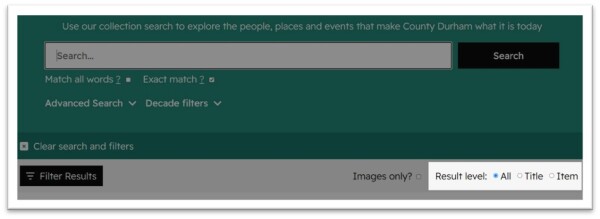
- Title – this will display results at catalogue level. A catalogue is simply a series of individual records grouped together. Some of our collections are divided into multiple sub-catalogues based on the type of record or subject matter.
As you can see in the image below only one result is listed.
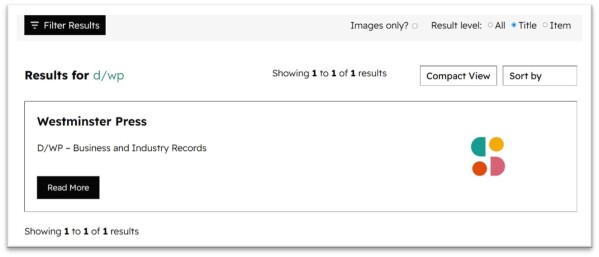
Clicking on the black Read More box will re-direct you to the full item listing for the catalogue where you can read catalogue descriptions for individual items:
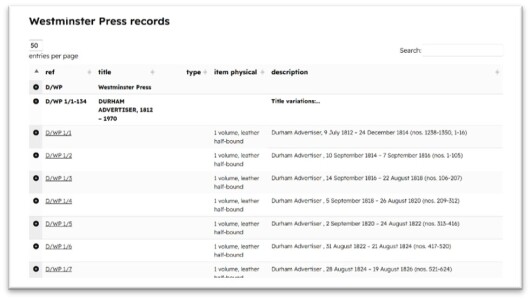
Item – This will display results for each individual item within a catalogue or collection.
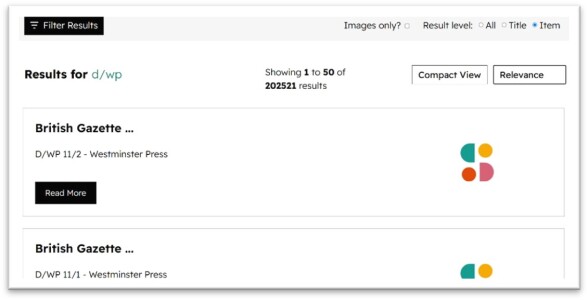
Clicking the Read More box on an individual item listing will take you to a page giving details about that particular item.
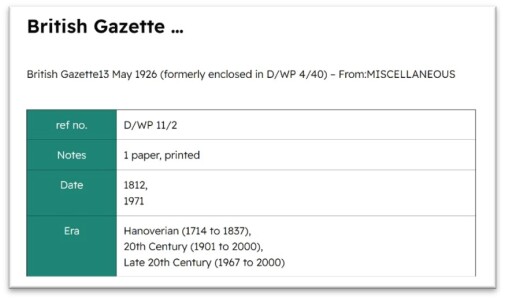
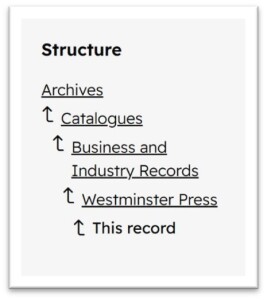
If when looking at an individual item listing, you would like to see what other items exist within the same collection or catalogue you can click on the level above in the Structure tree to view the full catalogue listing for that section of the collections.
- All – this option will display results at both item and catalogue level
Choose how your results are displayed
Below the main search box are three checkmark options for how results will be displayed.
- Title – this will display results at catalogue level. A catalogue is simply a series of individual records grouped together. Some of our collections are divided into multiple sub-catalogues based on the type of record or subject matter.
As you can see in the image below only one result is listed.
Clicking on the black Read More box will re-direct you to the full item listing for the catalogue where you can read catalogue descriptions for individual items:
Item – This will display results for each individual item within a catalogue or collection.
Clicking the Read More box on an individual item listing will take you to a page giving details about that particular item.
If when looking at an individual item listing, you would like to see what other items exist within the same collection or catalogue you can click on the level above in the Structure tree to view the full catalogue listing for that section of the collections.
- All – this option will display results at both item and catalogue level
Image results
The Images only checkbox will filter results to only display items that have been digitised and therefore have a thumbnail preview image attached to their listing.
Un-digitised material will not be shown in the results list.

Image results
The Images only checkbox will filter results to only display items that have been digitised and therefore have a thumbnail preview image attached to their listing.
Un-digitised material will not be shown in the results list.
Search parameters
Below the main search bar you will see two options that allow you to alter how the search is performed.

Match all words – this will search for any item that contains all of the specified words in it’s catalogue description. This can be a very effective way of filtering results based on record type.
Combine keywords describing the type of record [map, plan, photograph, deed, conveyance etc.] with a second keyword such as place name or surname etc.
Keywords should be entered as plain text with a space separating them.
For example:
- Diary Morant
- Plan Brancepeth
- Map Durham City
- Photograph 2nd battalion
Exact match – checking the option will only search for items that have an exact match to either the string of words or document reference entered in the search field.
This can be a partial string for example an exact match search against D/DLI 2 will search for any sub-numbered items within that section of the catalogue such as D/DLI 2/4/365.
Search parameters
Below the main search bar you will see two options that allow you to alter how the search is performed.
Match all words – this will search for any item that contains all of the specified words in it’s catalogue description. This can be a very effective way of filtering results based on record type.
Combine keywords describing the type of record [map, plan, photograph, deed, conveyance etc.] with a second keyword such as place name or surname etc.
Keywords should be entered as plain text with a space separating them.
For example:
- Diary Morant
- Plan Brancepeth
- Map Durham City
- Photograph 2nd battalion
Exact match – checking the option will only search for items that have an exact match to either the string of words or document reference entered in the search field.
This can be a partial string for example an exact match search against D/DLI 2 will search for any sub-numbered items within that section of the catalogue such as D/DLI 2/4/365.
Result Filters
When searching at either collection or item level, you will see results displayed that may belong to multiple different collections.
Clicking the black Filter Results button will open a series of drop-down categories that will allow you to further filter the displayed results.
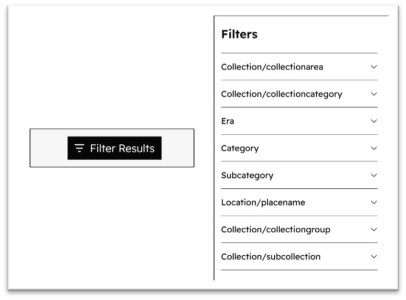
Of these the Collection/subcollection category is particularly help as it will list individual collections held in the archives for instance the individual catalogue of material held for a particular Parish Church.
Live-Filter Results
When looking at the full item listing within a catalogue search, the small search box above the main listing can be used to live-filter results by keyword.
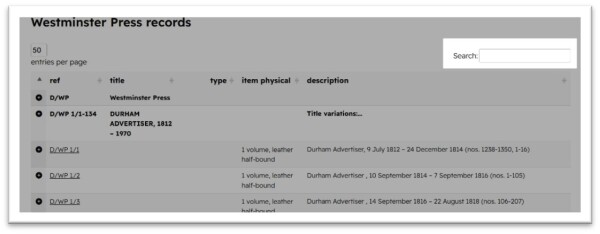
Result Filters
When searching at either collection or item level, you will see results displayed that may belong to multiple different collections.
Clicking the black Filter Results button will open a series of drop-down categories that will allow you to further filter the displayed results.
Of these the Collection/subcollection category is particularly help as it will list individual collections held in the archives for instance the individual catalogue of material held for a particular Parish Church.
Live-Filter Results
When looking at the full item listing within a catalogue search, the small search box above the main listing can be used to live-filter results by keyword.
Collection areas
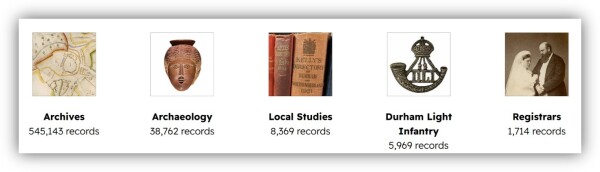
When you first load the Collections Search page you will see several broad collections groupings.
Clicking any of these will load the Collections Search with an active filter for that specific collection, this will be indicated under the main search field.

Note:
The Durham Light Infantry category contains the physical object collection formerly held at the DLI museum, including medals, uniforms, paintings etc.
It does not include the main regimental archive, which is part of the archive collections and can therefore be found under the Archives section.
Collection areas
When you first load the Collections Search page you will see several broad collections groupings.
Clicking any of these will load the Collections Search with an active filter for that specific collection, this will be indicated under the main search field.
Note:
The Durham Light Infantry category contains the physical object collection formerly held at the DLI museum, including medals, uniforms, paintings etc.
It does not include the main regimental archive, which is part of the archive collections and can therefore be found under the Archives section.